Outbound Mailboxes
The Outbound section of the Mail module groups every message sent from internal users to external recipients into seven mailboxes, one for each outcome of the SendGuard outbound engine. Most of these mailboxes follow the same screen layout as inbound — only the column names and the available actions change. Approval and Attachment are exceptions worth a closer look.
For the field-by-field description of the shared layout, see Portal Overview. For the filter bar — including the Match modes, Period presets, and the Detail ▼ advanced filters — see the Filter Bar Reference on the Mail overview page.
The Seven Mailboxes
| Mailbox | Page header | Contents |
|---|---|---|
| Clean | Mail box (Outbound) - Safe | Messages that passed every check and were sent successfully |
| Block Outbound | Mail box (Outbound) - Block | Messages blocked at the gateway for violating sending policy |
| Cancel Outbound | Mail box (Outbound) - Cancel | Messages canceled before delivery, by user or by policy |
| Approval | Mail box (Outbound) - Approval | Messages held in a review queue, waiting for an approver |
| Malware | Mail box (Outbound) - Malicious code | Outbound messages containing malicious code |
| Attachment | Mail box (Outbound) - Attachment | Per-attachment audit log — one row per attached file |
| Protect Privacy | Mail box (Outbound) - Privacy blocking | Messages flagged for potential leakage of sensitive information |
How Outbound Mailboxes Differ From Inbound
Outbound mailboxes share the four-area layout with inbound mailboxes, but a few details are specific to outbound traffic:
- Recipient field — the filter bar and the column header use Actual Recipient instead of Recipient.
- Date columns — outbound mailboxes show Outbound Date (when the user submitted the message) and Real Outbound Date (when the message actually left the gateway).
- Status column — instead of Delivery Status, outbound mailboxes show Status of Outbound with values such as Sending Complete, Sending Failure, Impossible to Send, Sending Now, or Not Sending.
- Filter log — the classification badge column is named Filter log (not Filter Result) to reflect that the engine logs the policy result rather than a delivery decision.
- Action bar — most outbound mailboxes show only Delete, since outbound messages have already been processed by the sending engine.
Sample Mailbox Views
The Clean outbound mailbox is the most common view — every successfully sent message ends up here.
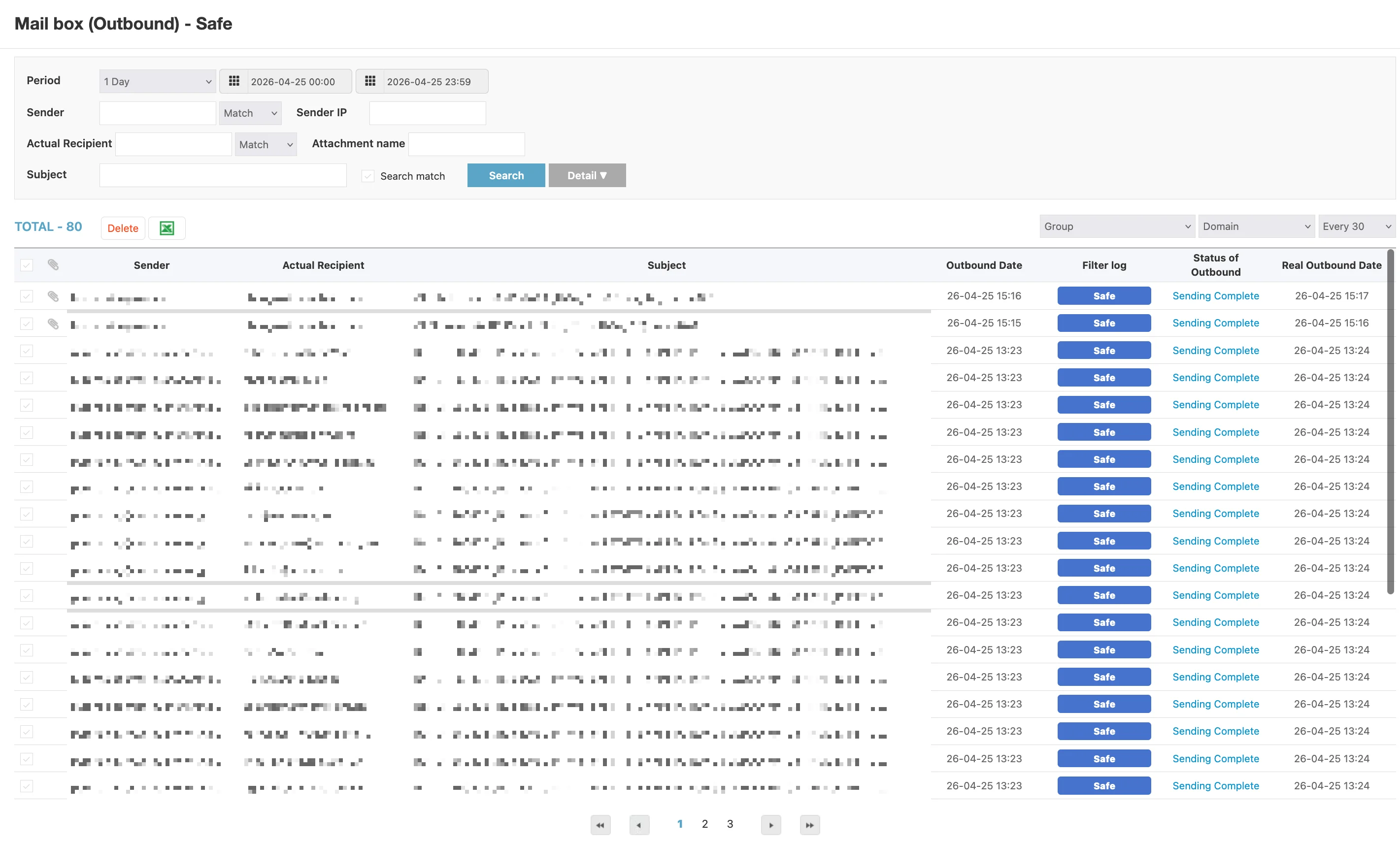
The Block Outbound, Cancel Outbound, Malware, and Protect Privacy mailboxes use the same screen layout as Clean — only the badge value in the Filter log column changes.
Action Bar Differences
The action bar is intentionally minimal for outbound mailboxes because outbound mail is processed at submission time rather than after the fact. Approval and Attachment are the exceptions.
| Mailbox | Available bulk actions |
|---|---|
| Clean | Delete |
| Block Outbound | Delete |
| Cancel Outbound | Delete |
| Malware | Delete |
| Protect Privacy | Delete |
| Approval | Resend only |
| Attachment | Delete |
The Excel icon, the Group option, and the Page size option on the right of the action bar are present in every mailbox.
Approval — The Workflow Mailbox
The Approval mailbox is the only place where an administrator can review and release an outbound message held by policy. Messages enter this mailbox when a sending rule requires human sign-off — for example, messages from new senders, oversized messages, messages to high-risk destination domains, or messages flagged by Approval Group Management.
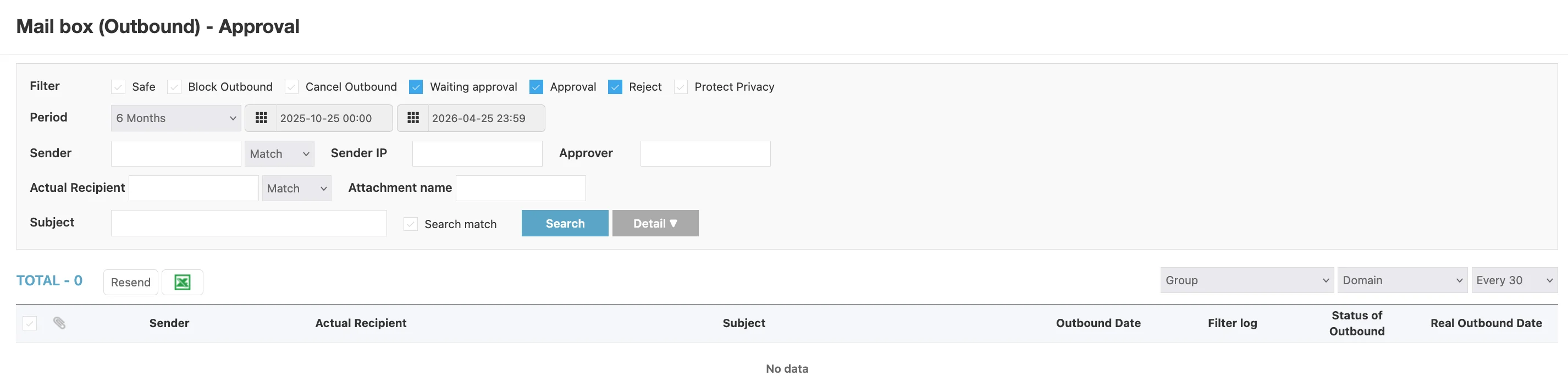
Two things make this mailbox different from the others:
Status checkboxes at the top of the filter bar narrow the list to one or more approval states. By default several boxes are checked; for daily review, leave only Waiting approval checked and click Search.
| Checkbox | Selects messages with status |
|---|---|
| Safe | Already approved and successfully sent |
| Block Outbound | Blocked by policy after submission |
| Cancel Outbound | Canceled while in the queue |
| Waiting approval | Currently held, waiting for a reviewer |
| Approval | Approved by a reviewer |
| Reject | Rejected by a reviewer |
| Protect Privacy | Held by the privacy policy for review |
Approver column is added to the filter bar, so the queue can be narrowed to one reviewer's activity.
The action bar shows a single Resend button, used to push approved or previously failed messages back into the sending queue. Approval and rejection of individual messages is done from the per-message review screen rather than from a bulk button.
Attachment — The Per-File Audit View
The Attachment mailbox is different from every other mailbox in the platform — instead of one row per message, it shows one row per attachment. A single outbound message with three attachments produces three rows here.
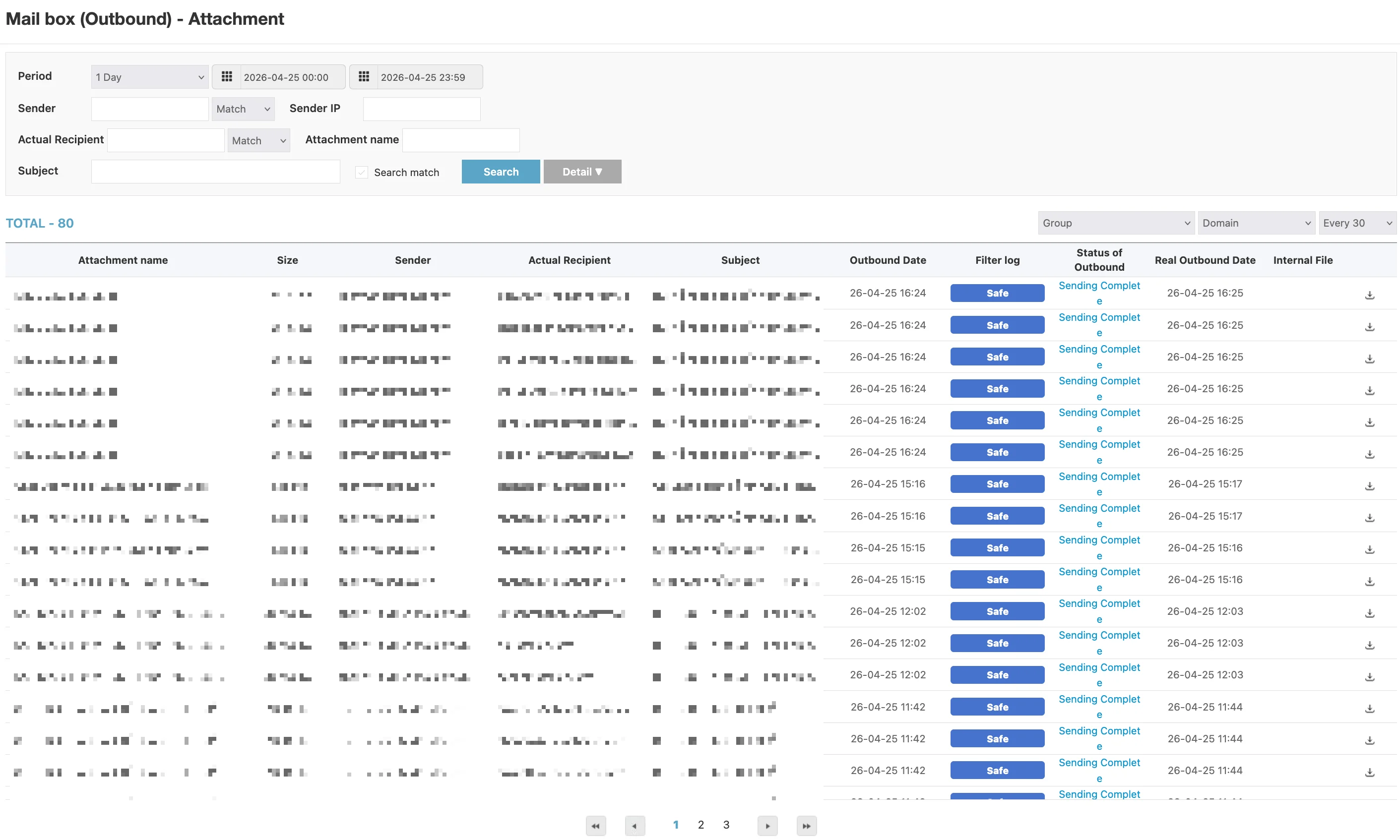
The columns are also reordered:
| Column | Description |
|---|---|
| Attachment name | Original filename of the attached file. The first column in this mailbox |
| Size | File size of the attachment |
| Sender | Internal sender address |
| Actual Recipient | Destination address |
| Subject | Subject of the message that carried the attachment |
| Outbound Date | When the user submitted the message |
| Filter log | Classification badge (typically Safe for delivered attachments) |
| Status of Outbound | Final sending state |
| Real Outbound Date | When the message actually left the gateway |
| Internal File | Download icon — click to retrieve the stored copy of the file from the gateway |
The single bulk action is Delete. Deleting a row removes both the attachment record and the stored copy of the file, so the Internal File download stops working for that row.
Common Workflows
Releasing a held outbound message
When a user reports that a message did not reach its recipient, check the outbound mailboxes in this order:
- Approval with the Waiting approval box checked — the message may be sitting in the review queue.
- Cancel Outbound — the message may have been canceled before sending.
- Block Outbound — the message may have been blocked by policy.
If the message is in Approval, approve it from the per-message review screen. If it has already been approved but failed delivery, select the row and click Resend.
Auditing outbound attachments
- Open the Attachment mailbox.
- Filter by Sender (or Actual Recipient) and the relevant Period.
- Sort or scan the Size column for unusually large files, and the Attachment name column for filenames suggestive of sensitive content.
- Click the Excel icon to export the result for the compliance team.
- Click an Internal File icon to retrieve a stored copy of any file that needs deeper inspection.
Recovering a lost attachment
- Open the Attachment mailbox.
- Filter by Sender and Period, then locate the row by Attachment name.
- Click the Internal File download icon to retrieve the stored copy of the file.
Exporting a daily outbound report
- Open the Clean outbound mailbox.
- Set Period to the desired range (for example, 1 Day).
- Apply any other filters.
- Click the Excel icon to download the result.
For day-to-day approval review, bookmark the Approval mailbox URL with the Waiting approval checkbox preselected. This puts the daily queue one click away.
Resend in the Approval mailbox pushes the selected messages back into the sending engine immediately. Verify the Status of Outbound value before resending — resending a message that is already in Sending Now state can produce duplicates at the recipient.
Clicking Delete in the Attachment mailbox removes the attachment record and the stored copy of the file. Confirm with the security or compliance team before deleting attachments that may be needed for audit.
Every action in the action bar applies to all selected rows. Verify the selection before clicking.