Archive List of Large URL File
The Archive List of Large URL File mailbox stores large attachments that have been (or will be) delivered to recipients as a secure download URL instead of as an inline file. The platform converts large attachments to a download link to avoid mailbox size limits at the recipient end and to give the sender central control over the file's lifetime, expiration, and download count. The mailbox lets administrators audit upload activity, monitor download activity, and clean up expired entries.
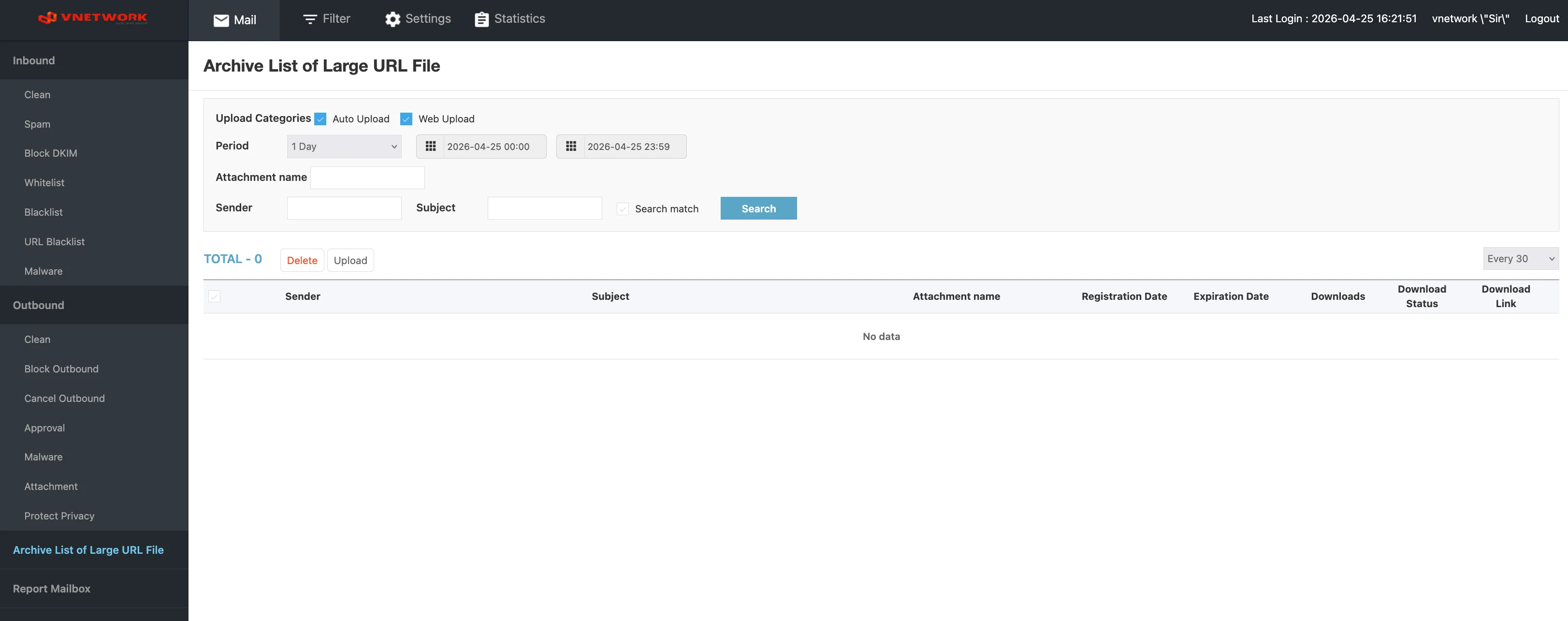
The page is divided into four areas: a filter bar at the top, an action bar below it, the message list, and pagination at the bottom.
Filter Bar
The filter bar narrows the list to a specific set of upload entries. Multiple filters can be combined.
Upload Categories
A row of checkboxes at the top of the filter bar selects one or more upload sources:
| Checkbox | Selects entries that came from |
|---|---|
| Auto Upload | Files automatically converted by the gateway when an outbound message exceeded the inline-attachment size limit |
| Web Upload | Files uploaded directly by an administrator or sender through the portal interface |
By default both boxes are checked.
Standard filter fields
| Field | Description |
|---|---|
| Period | Time range for the upload date. A preset selector (for example, 1 Day) is provided alongside two date-time pickers for a custom range |
| Attachment name | Filter by the name of the uploaded file |
| Sender | Filter by the address of the sender that produced the upload |
| Subject | Filter by the subject of the message that referenced the upload. The Search match checkbox enables exact matching |
After entering the criteria, click Search to apply the filter.
Action Bar
The action bar sits between the filter bar and the entry list. It shows the total number of matching entries and provides bulk operations.
Counter
- TOTAL : N — Number of upload entries that match the current filter
Bulk actions
| Action | Effect |
|---|---|
| Delete | Remove the selected upload entries. The associated download URL is invalidated immediately |
| Upload | Open the upload dialog to add a new file to the archive. The dialog produces a new download URL that can be shared with recipients |
View options (right side)
- Page size — Choose how many entries to show per page (for example, Every 30)
Entry List
Each row in the list summarizes one large-file upload entry.
| Column | Description |
|---|---|
| Sender | Address of the sender that produced the upload (for Auto Upload) or the administrator who performed the upload (for Web Upload) |
| Subject | Subject of the outbound message that referenced this file. Empty for Web Upload entries that were not yet attached to a message |
| Attachment name | Original filename of the uploaded file |
| Registration Date | Date and time the file was added to the archive |
| Expiration Date | Date and time after which the download URL stops working |
| Downloads | Number of times the URL has been downloaded by recipients |
| Download Status | Current state of the download URL — typically Active while within the expiration window, or Expired afterward |
| Download Link | The shareable URL for the file. Click to copy or open |
Use the row checkbox on the left to select entries for the bulk actions in the action bar.
When the mailbox has no matching records the body shows No data.
Pagination
Pagination controls at the bottom of the page allow navigation through large result sets. The current page is highlighted, and arrows step backward or forward through the available pages.
Common Workflows
Sharing a large file outside the mail system
When a large file needs to be shared with an external recipient but is too big to attach inline:
- Click Upload in the action bar to open the upload dialog.
- Select the file from the local disk and confirm.
- Wait for the entry to appear in the list with Download Status = Active.
- Copy the Download Link value and share it with the recipient through any channel (for example, by composing a new outbound message that references the link).
Auditing large attachments leaving the organization
A periodic review confirms that the auto-conversion policy is working and that no oversized confidential files are being shared inadvertently:
- Set Period to the audit window (for example, the past month).
- Check only Auto Upload to focus on files that the gateway converted automatically.
- Sort or scan the Attachment name column for unexpected filenames (large database exports, presentation decks intended for internal use, and so on).
- Use the Excel export from the action bar (if available) for compliance reporting.
Tracking download activity for a sensitive file
When a sensitive file has been shared and the sender wants to confirm whether the recipient has retrieved it:
- Filter by Sender and the relevant Period.
- Locate the entry by Attachment name.
- Inspect the Downloads column for the count and the Download Status column to confirm whether the URL is still active.
Revoking a shared file
When a file should no longer be downloadable (for example, the link was sent to the wrong recipient):
- Filter by Sender and Attachment name to locate the entry.
- Select the row checkbox.
- Click Delete in the action bar. The download URL is invalidated immediately and any subsequent download attempt fails.
Cleaning up expired entries
- Use the Period filter to focus on older entries.
- Sort or scan the Download Status column for Expired rows.
- Select the rows and click Delete to free up archive storage.
The Auto Upload category is the most useful for compliance audits because it captures files that were converted by policy rather than by user action. Filter on Auto Upload alone to see exactly which oversized attachments left the organization through the gateway.
Clicking Delete invalidates the download URL immediately. If the file has already been shared with recipients who have not yet downloaded it, the URL will stop working for them as well. Confirm with the sender before deleting an active entry.