Portal Overview
After signing in, the RGuard portal is organized into three main areas: the top navigation bar, the sidebar menu, and the main content area. This page describes the role of each area so administrators can locate features quickly.
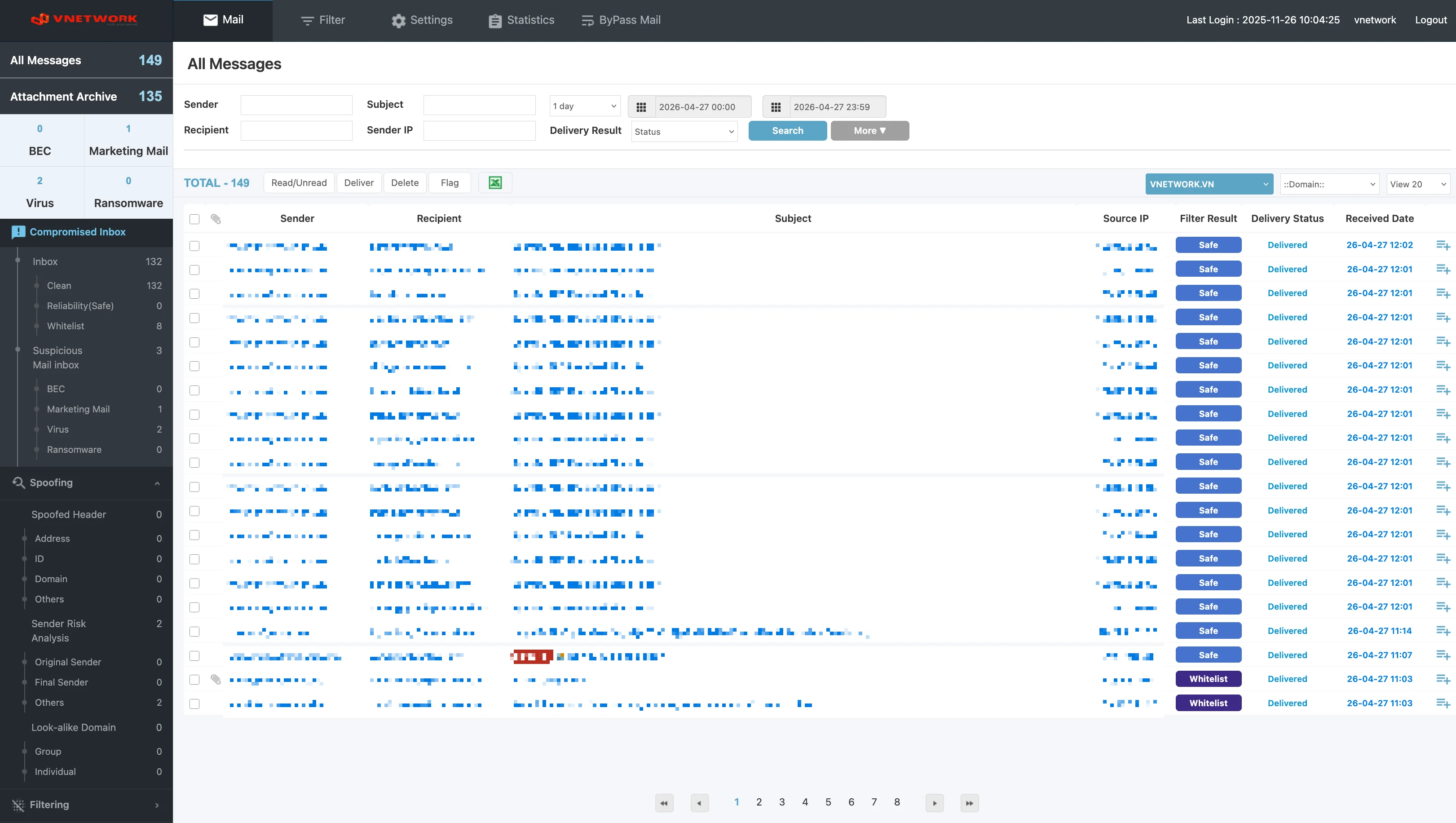
Top Navigation Bar
The dark header at the top of every page contains the primary navigation and the active session information.

Primary Menu
The primary menu provides access to the five main modules of the platform:
| Menu | Purpose |
|---|---|
| Monitor and process mailboxes for inbound mail classified by RGUARD's detection engines | |
| Filter | Manage allow / block / advanced rules applied by RGUARD |
| Settings | Group administrator account management |
| Statistics | Aggregated reports and analytics for RGUARD detections |
| ByPass Mail | Manage messages that bypass part of the inspection chain |
Selecting a menu item highlights the active module and updates the sidebar with the corresponding sub-menu.
RGuard adds a fifth top-level menu — ByPass Mail — that does not exist in SGuard. It is used to manage messages that should skip part of the inspection chain.
Session Information
The right side of the header displays:
- Last Login — the date and time of the previous successful sign-in, useful for verifying that the account has not been accessed by an unauthorized party
- Username — the administrator account currently signed in
- Logout — ends the session and returns to the login page
Always review the Last Login value when entering the portal. If the timestamp does not match a known session, change the password immediately and report the activity to the VNETWORK administrator.
Sidebar Menu
The sidebar on the left lists the available functions for the active module. When the Mail module is selected, the sidebar groups every RGUARD mailbox by detection category.
The sidebar of the Mail module contains a header section and three function groups.
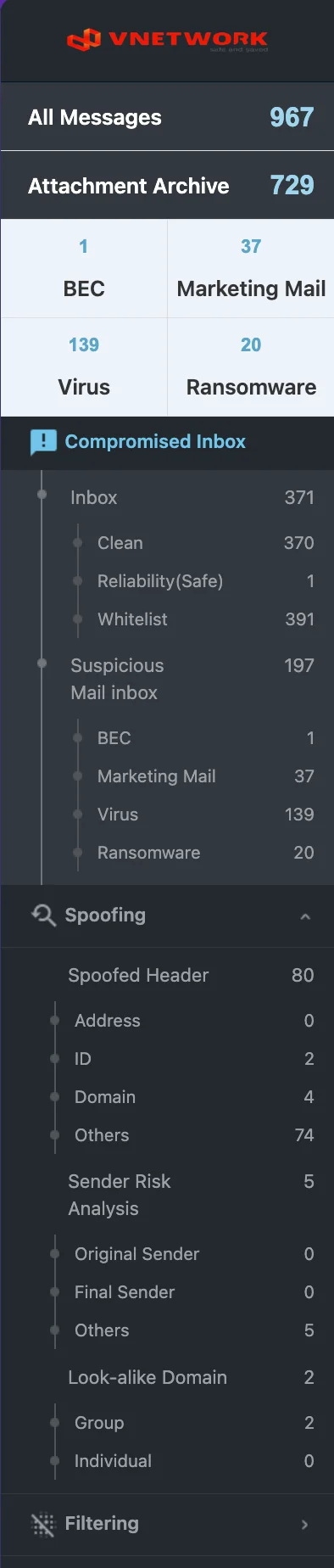
Header Section
At the top of the sidebar, two counters show the size of the global queues:
- All Messages — the complete list of inbound messages that RGUARD has processed, regardless of classification
- Attachment Archive — every message held by RGUARD that contains an attachment, kept for forensic review
Below the header, four quick-stat tiles display live counts for the most critical mailboxes — BEC, Marketing Mail, Virus, and Ransomware — so administrators can see the current threat volume without leaving the page.
Each item inside the function groups also displays its own message counter on the right side, so the relative volume of every category is visible at a glance.
Compromised Inbox
Mailboxes for messages that may originate from a compromised or impersonated account.
- Inbox
- Clean — messages with no detection
- Reliability (Safe) — messages confirmed safe by RGUARD's reliability engine
- Whitelist — messages from senders explicitly allowed by policy
- Suspicious Mail Inbox
- BEC — Business Email Compromise (invoice fraud, payroll redirection, executive impersonation)
- Marketing Mail — bulk or promotional messages
- Virus — messages carrying malware that escaped signature-based scanners
- Ransomware — messages designed to deliver ransomware payloads
Spoofing
Mailboxes for messages where the sender identity does not match the actual origin of the mail.
- Spoofed Header — the visible header has been forged
- Address — the displayed From address differs from the envelope sender
- ID — the local part (mailbox name) is forged
- Domain — the domain part is forged
- Others — header forgeries that do not fit the categories above
- Sender Risk Analysis — the sending path or sender history shows elevated risk
- Original Sender — the first sender in the path is risky
- Final Sender — the last sender (the relay handing the mail to RGUARD) is risky
- Others — risk signals that do not fit either category
- Look-alike Domain — the sending domain looks similar to a trusted domain (homoglyph or typo-squatting)
- Group — multiple suspicious domains share the same look-alike pattern
- Individual — a single look-alike domain on its own
Filtering
A separate group at the bottom of the sidebar holds the rules and overrides applied by the RGUARD engine. Selecting a sidebar item loads the corresponding mailbox in the main content area.
Main Content Area
The main area on the right displays the content of the active mailbox or feature. For mail-related views, it is divided into four sections.
Filter Bar
The filter bar at the top of the page narrows the message list. Multiple filters can be combined.
- Sender / Sender IP — Filter by the sender address or the sending server IP
- Recipient — Filter by the recipient address
- Subject — Filter by the subject line
- Period — A preset selector (for example, 1 Day) and two date-time pickers for a custom range
- Delivery Result — A status dropdown to narrow by delivery outcome (for example, Delivered, Not delivered)
- Search / More ▼ — Click Search to apply the current filter, or More ▼ to expand additional filter fields
A domain selector and an ::Domain:: filter on the right of the message list allow the view to be scoped to a single domain when the group manages more than one.
Action Bar
Between the filter bar and the message list, an action bar shows the total number of matching messages (TOTAL - N) and provides bulk operations on selected rows.
The complete catalog of bulk actions used across RGuard mailboxes is:
| Action | Effect |
|---|---|
| Read / Unread | Toggle the read state of the selected messages |
| Deliver | Forward the selected messages to their recipients (used to release messages held by RGUARD) |
| Delete | Remove the selected messages from the mailbox |
| Flag | Mark the selected messages for follow-up |
The Excel icon on the right of the action bar exports the current message list to an .xlsx file. View options on the far right allow grouping the results by a chosen column and adjusting the page size (for example, View 20).
Message List
The message list shows the results of the active filter. Each row provides a summary of one message. Inbound mailboxes show:
| Column | Content |
|---|---|
| ☐ | Selection checkbox for bulk actions |
| 📎 | Attachment indicator |
| Sender | The sending address |
| Recipient | The receiving address |
| Subject | The subject line of the message |
| Source IP | The IP address that delivered the message to RGUARD |
| Filter Result | The classification badge assigned by RGUARD (for example, Safe) |
| Delivery Status | The final delivery state (for example, Delivered) |
| Received Date | The time RGUARD received the message |
Use the row checkbox on the left to select messages for the bulk actions in the Action Bar.
Pagination
Pagination controls at the bottom of the page allow navigation through large result sets. The current page is highlighted, and arrows step backward or forward through the available pages.
The exact set of columns and the available bulk actions may vary slightly between mailboxes, since each mailbox is optimized for the type of message it contains. Each mailbox page in this documentation lists the columns and actions specific to it.