The Mail module is the primary workspace in RGuard. It groups every mailbox produced by RGUARD's advanced inspection engine into a single navigation area, so administrators can review and act on any message that survived the first SpamGuard layer.
Because RGUARD inspects messages that already passed SpamGuard, every mailbox here represents a finding from RGUARD's own deeper analysis — sandbox detonation, behavioural scoring, header forensics, and look-alike domain detection.
Module Layout
When the Mail menu is selected from the top navigation bar, the sidebar lists every mailbox grouped by detection category. The screen layout — filter bar, action bar, message list, pagination — is the same in every mailbox; only the contents and the Filter Result badge change.
The sidebar header surfaces two global views and four quick-stat tiles:
| Item | Purpose |
|---|---|
| All Messages | Global queue of every message processed by RGUARD, regardless of classification |
| Attachment Archive | Every message that carried an attachment, kept for forensic review |
| BEC / Marketing Mail / Virus / Ransomware | Tile counters that jump straight to the most actionable Suspicious Mail mailboxes |
Below the header, mailboxes are split into three groups that match the categories described in the module intro.
Compromised Inbox
Messages that look like routine business mail but show signs of a compromised or impersonated account.
| Mailbox | Sub-mailbox | Contents |
|---|---|---|
| Inbox | Clean | Messages cleared by RGUARD with no advanced-threat findings |
| Inbox | Reliability (Safe) | Messages from senders RGUARD considers reliable based on history |
| Inbox | Whitelist | Messages from senders explicitly allowed by policy |
| Suspicious Mail Inbox | BEC | Business Email Compromise — invoice fraud, payroll redirection, executive impersonation |
| Suspicious Mail Inbox | Marketing Mail | Bulk or promotional messages separated from business correspondence |
| Suspicious Mail Inbox | Virus | Messages carrying malware that escaped signature-based scanners |
| Suspicious Mail Inbox | Ransomware | Messages designed to deliver ransomware payloads |
The Suspicious Mail Inbox group itself is also a mailbox: opening it shows every message classified into any of its four sub-mailboxes.
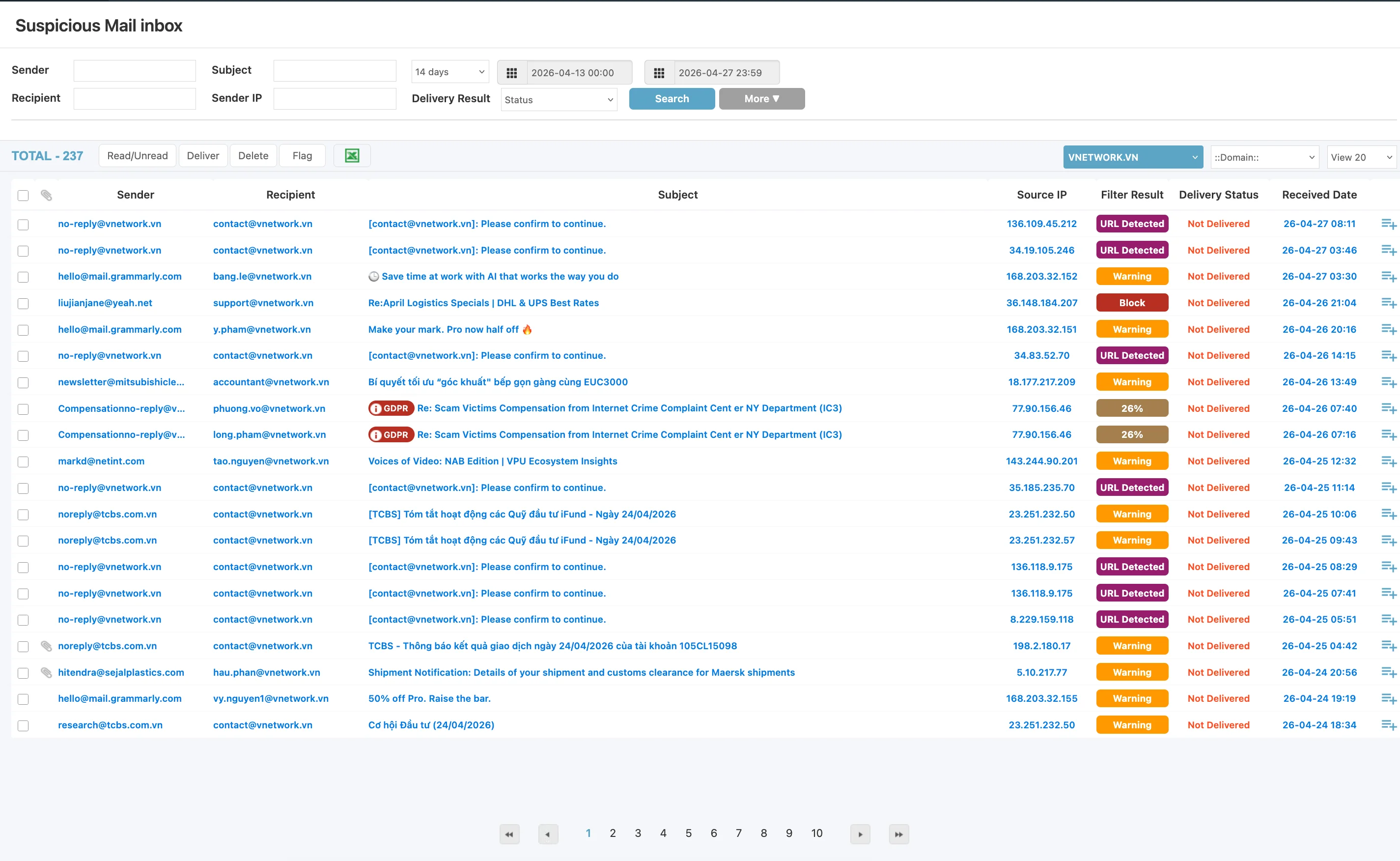
The Filter Result column makes the classification explicit on each row, with badges such as URL Detected, Block, Warning, or a numeric risk percentage.
Spoofing
Messages where the sender identity does not match the actual origin of the mail.
| Mailbox | Sub-mailbox | Contents |
|---|---|---|
| Spoofed Header | Address | The visible From address has been forged |
| Spoofed Header | ID | The local part (left of @) does not match the registered identity |
| Spoofed Header | Domain | The sending domain has been forged |
| Spoofed Header | Others | Other header anomalies that do not fit the categories above |
| Sender Risk Analysis | Original Sender | The original sender shows elevated risk |
| Sender Risk Analysis | Final Sender | The final hop before delivery shows elevated risk |
| Sender Risk Analysis | Others | Other risk signals along the delivery path |
| Look-alike Domain | Group | Sending domain looks similar to a corporate / business-partner domain |
| Look-alike Domain | Individual | Sending domain looks similar to an individual user's trusted domain |
Like Compromised Inbox, every group header — Spoofed Header, Sender Risk Analysis, Look-alike Domain — is itself a mailbox that aggregates the messages from its sub-mailboxes.
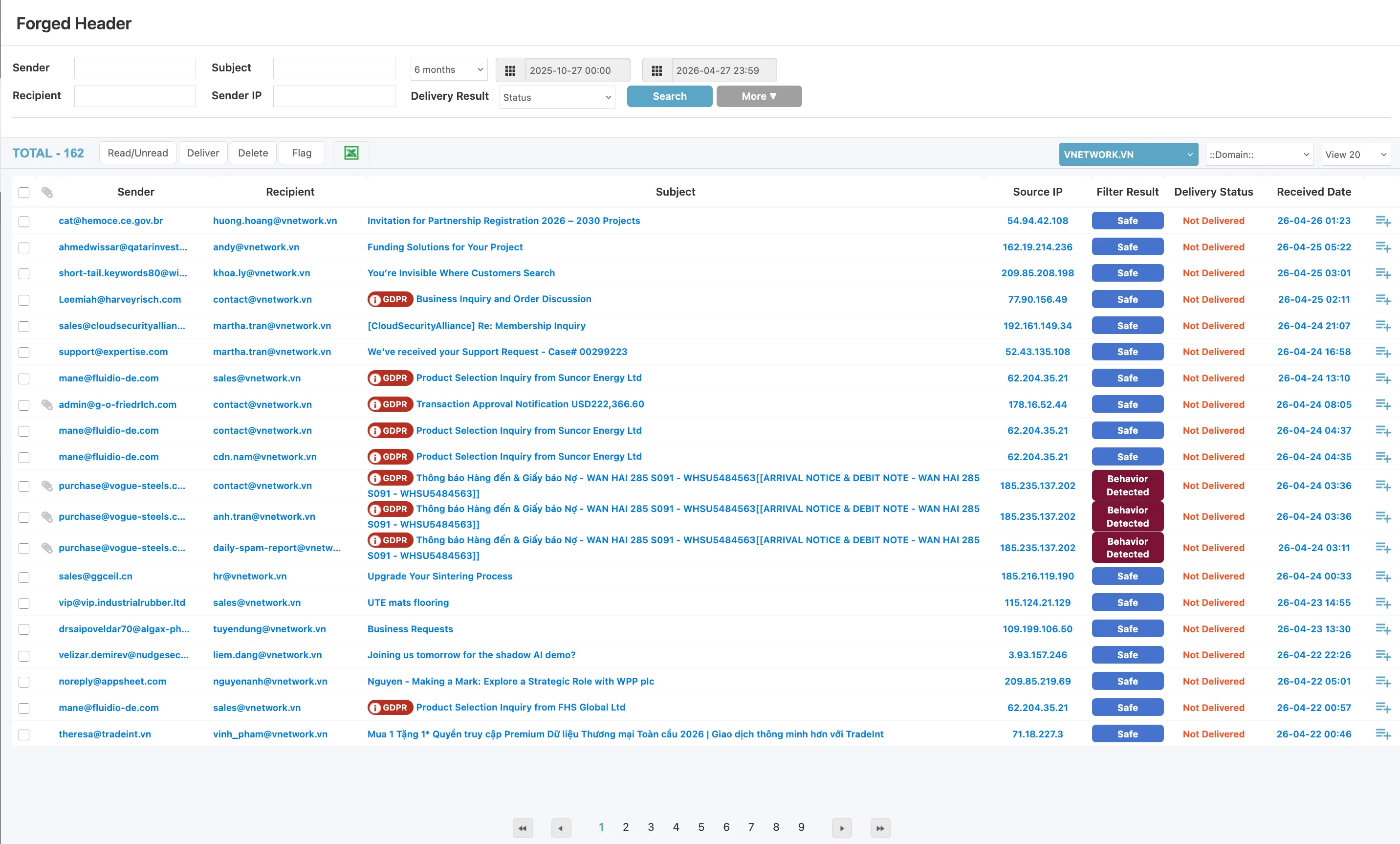
The Spoofing mailboxes are where RGUARD's behavioural signals show most strongly: rows often carry Behavior, CUBE (sandbox), Warning, or numeric percentage badges.
Filtering
Mailboxes for messages affected by RGUARD's filtering rules and policies. The Filtering group is configured separately in the Filter module; see the dedicated documentation when it is published.
Filter Result Badges
The Filter Result column uses the same badge vocabulary in every mailbox. Knowing what each badge means is the fastest way to triage a list.
| Badge | Meaning |
|---|---|
| Safe (blue) | RGUARD found no issue and the message has been delivered |
| URL Detected (purple) | The message contains a URL classified as suspicious or phishing |
| Warning (orange) | Mid-level risk — review recommended before delivery |
| Block (red) | RGUARD blocked the message; it is held in quarantine |
<n>% (yellow / brown) | Numeric behavioural risk score expressed as a percentage |
| Behavior (red) | The message matched a behavioural-analysis rule |
| CUBE icon (subject column) | RGUARD's sandbox engine inspected the message |
| Clock icon (subject column) | The message is delayed or queued for additional inspection |
A single message can carry several signals at once. When that happens, the row shows the highest-severity badge in the Filter Result column and the Subject column carries the supporting icons.
Message Detail View
Clicking any row opens the message detail view. RGUARD's detail view is richer than the inbound list and adapts to whatever signals fired on the message.
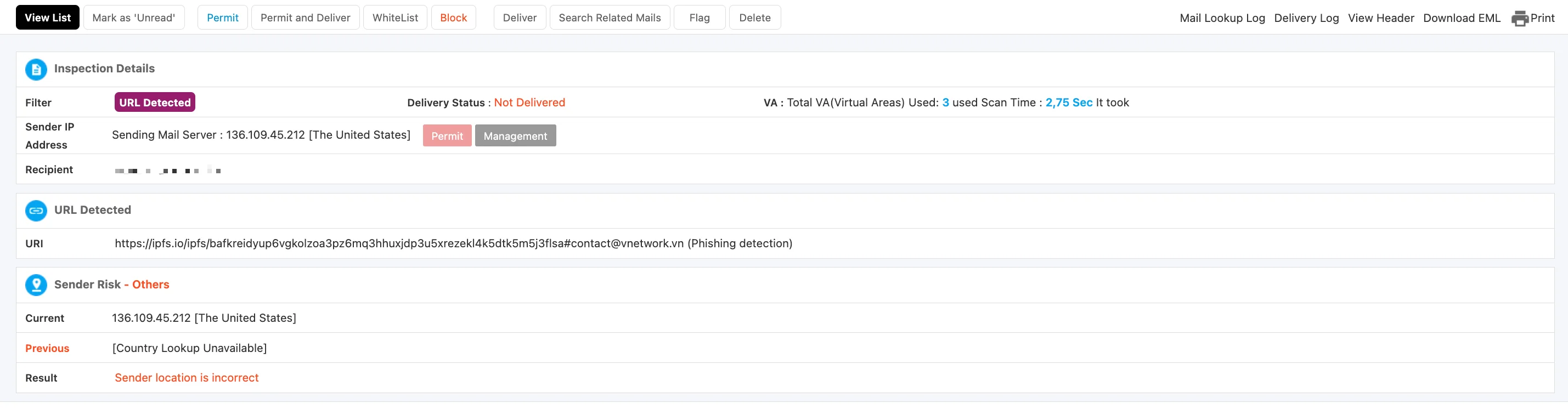
Header links (top right)
| Link | Purpose |
|---|---|
| Mail Lookup Log | Audit trail of who opened the message and when |
| Delivery Log | Delivery attempts, results, and any retries |
| View Header | Full raw mail headers |
| Download EML | Download the message as an .eml file for offline analysis |
| Print the detail view |
Action bar
The action bar at the top of the detail view exposes ten buttons. Each acts on the single message currently being viewed.
| Button | Effect |
|---|---|
| View List | Return to the mailbox list |
| Mark as 'Unread' | Reset the message back to unread |
| Permit | Allow this single message through, without changing any policy |
| Permit and Deliver | Permit the message and release it to the recipient immediately |
| WhiteList | Add the sender to the whitelist policy |
| Block | Block the message and record the sender for blocking |
| Deliver | Release the message to the recipient |
| Search Related Mails | Find other messages from the same sender or sharing key indicators |
| Flag | Flag the message for follow-up |
| Delete | Delete the message from RGUARD storage |
Inspection sections
Below the action bar, the detail view renders one or more sections depending on what RGUARD found:
- Inspection Details — Filter badge, Delivery Status, and the VA line — for example
VA: Total VA(Virtual Areas) Used: 3, used Scan Time: 2,75 Sec. RGUARD's sandbox (CUBE) runs each suspicious sample inside multiple isolated virtual areas; the line records how many were used and the time spent. - Sender IP Address — The originating mail server, its country, and quick Permit / Management controls.
- Recipient — The list of intended recipients.
- URL Detected — When the message contained a suspicious link, the full URI is shown together with its detection tag (for example
(Phishing detection)). - Sender Risk - Others — The current and previous IP for the sender, together with a plain-language Result such as Sender location is incorrect.
A message that fires multiple detections shows multiple sections stacked together. This is normal — modern advanced threats typically produce more than one signal.
Common Workflows
The same handful of tasks come up across most mailboxes.
Reviewing a flagged message
- Open the relevant mailbox from the sidebar (for example Suspicious Mail Inbox / BEC).
- Use the Filter Result column to spot the highest-severity items.
- Click a row to open the detail view and read the Inspection Details and any URL / Sender Risk sections.
- Decide whether to Permit and Deliver, WhiteList the sender, Block, or Delete.
Releasing a quarantined message
- From the detail view, confirm the message is safe — read the URL, verify the sender out of band, and check the Sender Risk section.
- Click Permit and Deliver to release the single message and let it through immediately.
- Use WhiteList instead if every future message from the same sender should also bypass the same detection.
Searching across the platform
- Open All Messages from the sidebar header to leave a specific category and look across the whole platform.
- Use the filter bar (Sender / Recipient / Subject / Sender IP, plus the Period preset and date pickers) to narrow the list.
- Click Search to refresh, or More ▼ to expose additional fields.
The CUBE icon in the Subject column is the cheapest way to spot messages that triggered the sandbox. When triaging a large mailbox, sort or filter for these first — they typically carry the strongest signal.
Permit marks the single message as allowed, but it does not release it. Permit and Deliver does both. If a recipient says they cannot find a message you released, check whether you used Permit alone.
Never use Deliver or Permit and Deliver on a message in BEC, Virus, or Ransomware without independent verification that it is safe. RGUARD is the second inspection layer for a reason — these mailboxes contain threats that already evaded SpamGuard.