Recordings
The Recordings page provides a complete view of all live recording tasks associated with the account. Users can query recording activity, inspect task metadata, and filter results to locate specific recordings quickly.
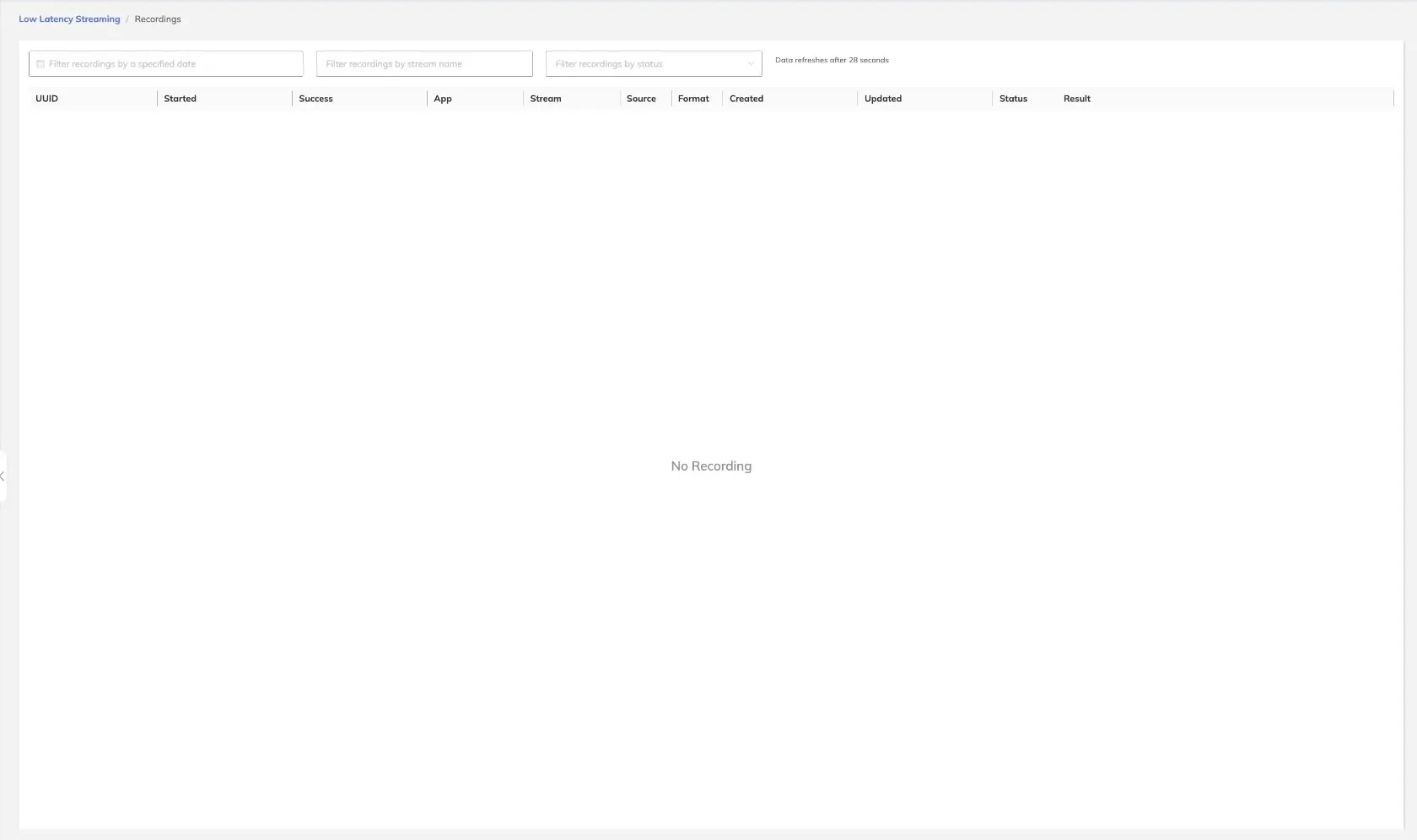
Recording Task Table
Each row in the recordings table represents a single recording task. The following columns are displayed:
| Column | Description |
|---|---|
| UUID | Unique identifier assigned to the recording task |
| Started | Timestamp indicating when the recording task began |
| Success | Indicates whether the recording completed successfully |
| App | The application name associated with the stream |
| Stream | The stream name that was recorded |
| Source | The ingest source for the recorded stream |
| Format | The output format of the recording (e.g., MP4, FLV, HLS) |
| Created | Timestamp when the recording task was created |
| Updated | Timestamp of the most recent update to the task |
| Status | Current state of the recording task |
| Result | Outcome or result data for the completed recording |
Filtering Recordings
The recordings list supports the following filter options to narrow down results:
- Date: Filter recording tasks by a specific date or date range
- Stream Name: Search for recordings associated with a particular stream name
- Status: Filter by the current task status (e.g., running, completed, failed)
Data Refresh
The recordings table refreshes automatically every 28 seconds to reflect the latest task status and result data. Users can also trigger a manual refresh at any time using the refresh control.
tip
Use the stream name filter in combination with a date range to quickly locate recordings from a specific broadcast session.